
Easily adjust document display and customize keyboard shortcuts
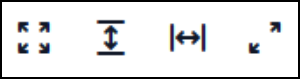
If your documents look too small or too large when viewing them, you can use the icons at the bottom of the screen to adjust the display to your preference—such as fitting the width, fitting the height, or fitting the entire page.
Another time-saving feature is a keyboard shortcut which is available for most commonly used actions. Found in the Settings section in Titan, shortcuts are particularly useful when viewing documents.
In addition, you can create your own keyboard shortcuts for annotations that you often use.
Instructions can be found on the Using Annotation Shortcuts.
You’re ready to explore! With these tips in hand, you’ll navigate, capture, and manage documents faster and smarter than ever!