
Modifying Columns for Easier Viewing
When you perform a document search, you can now add or remove columns for this working session.
In the Document Viewer, click the second icon in the top-right corner, labeled Columns. When you select this icon, the Columns dialog box opens.
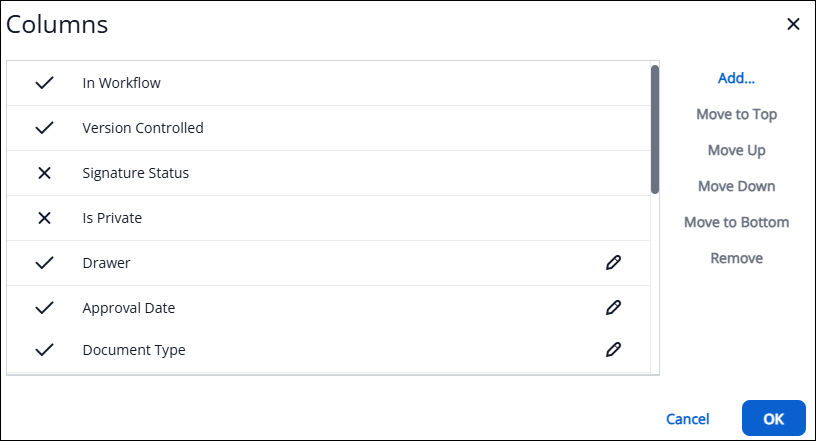
- This allows you to reorder the columns in your search results, omit unnecessary columns, and rename selected column labels. Make your selections and click OK to save these settings for the duration of your current working session.
Sorting Search Results Using Multiple Fields
When you perform a document search that returns a large number of results, you can now sort the results using multiple data fields.
- Locate the field you’d like to sort by, and click the arrow beside it to sort either in ascending or descending order.
- To sort by additional fields, repeat the process: click the arrow next to each desired field. For example, you can select Field3 first, then Field1, followed by Field2.
- A superscript number will appear next to each selected field, showing the order in which your sorts will be applied.
- To remove a field from your sort order, click its arrow again until the superscript number disappears.

Note: These "sorts" are sticky (i.e., the system remembers your sorting settings) during your working session and reset once you refresh or log in/out of the system.