
Setting up Thumbnail Viewing
If you regularly work with PDF documents and prefer to see page thumbnails, you’ll need to adjust your document rendering settings in Titan:
- Click on your user icon in the top-right corner of the screen.
- Select Settings from the menu.
- Click on Rendering.
- Change the rendering option from the default ‘Hyland Rendering and Conversion Service’ to ‘Native PDF Viewer’. This will enable your browser's built-in PDF viewer for viewing documents in Titan.
- After updating the setting, click the back button to return to your previous activity.
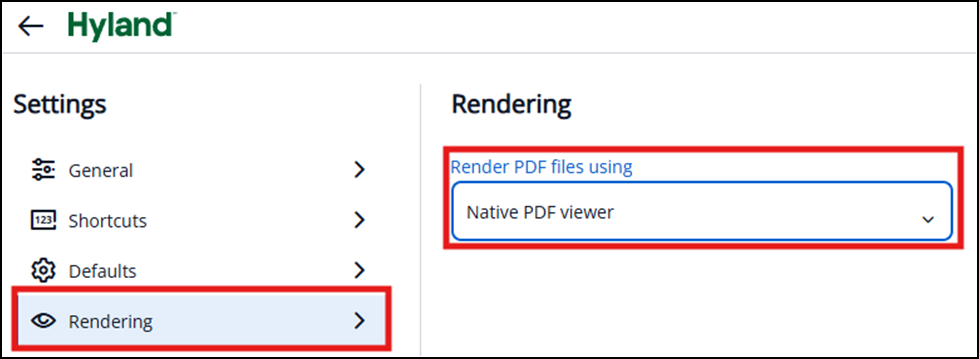
Now, when you open a PDF in Titan, you’ll see thumbnail previews of each page, making navigating within the document much easier!