Currently available from Great Lakes Open OnDemand only. The WebUI Open OnDemand is a batch connect application. The Ollama engine runs LLMs whereas the WebUI component provides a graphic interface.
Configure your session with the following recommended settings:
- Account: Select your allocation account
- Partition: Select any GPU partition for optimal performance (requirement). At this time, the LLM inference will not work on CPU only partitions.
- Number of CPUs: 4 (minimum recommended)
- Memory: 16GB (minimum recommended)
- Number of GPUs: 1 (increase for larger models or faster processing)
- Ollama Model Source:
- ARC Defaults:
/sw/pkgs/arc/ollama/arc-models - Bring my own:
/home/${USER}/ollama-models
- Open WebUI Account Password: A strong and secure admin password. This will be required for authentication into the WebUI. Generally, this field will set the initial (first time login) password for the WebUI. If you wish to change your password after your initial setup you will have to use the WebUI admin panel. Otherwise refer to the troubleshoot section below for force-reset options.
- Hours: Set according to your needs (2-4 hours is typical)
- Click Launch and wait for your job to start. This may take a few minutes depending on cluster availability.
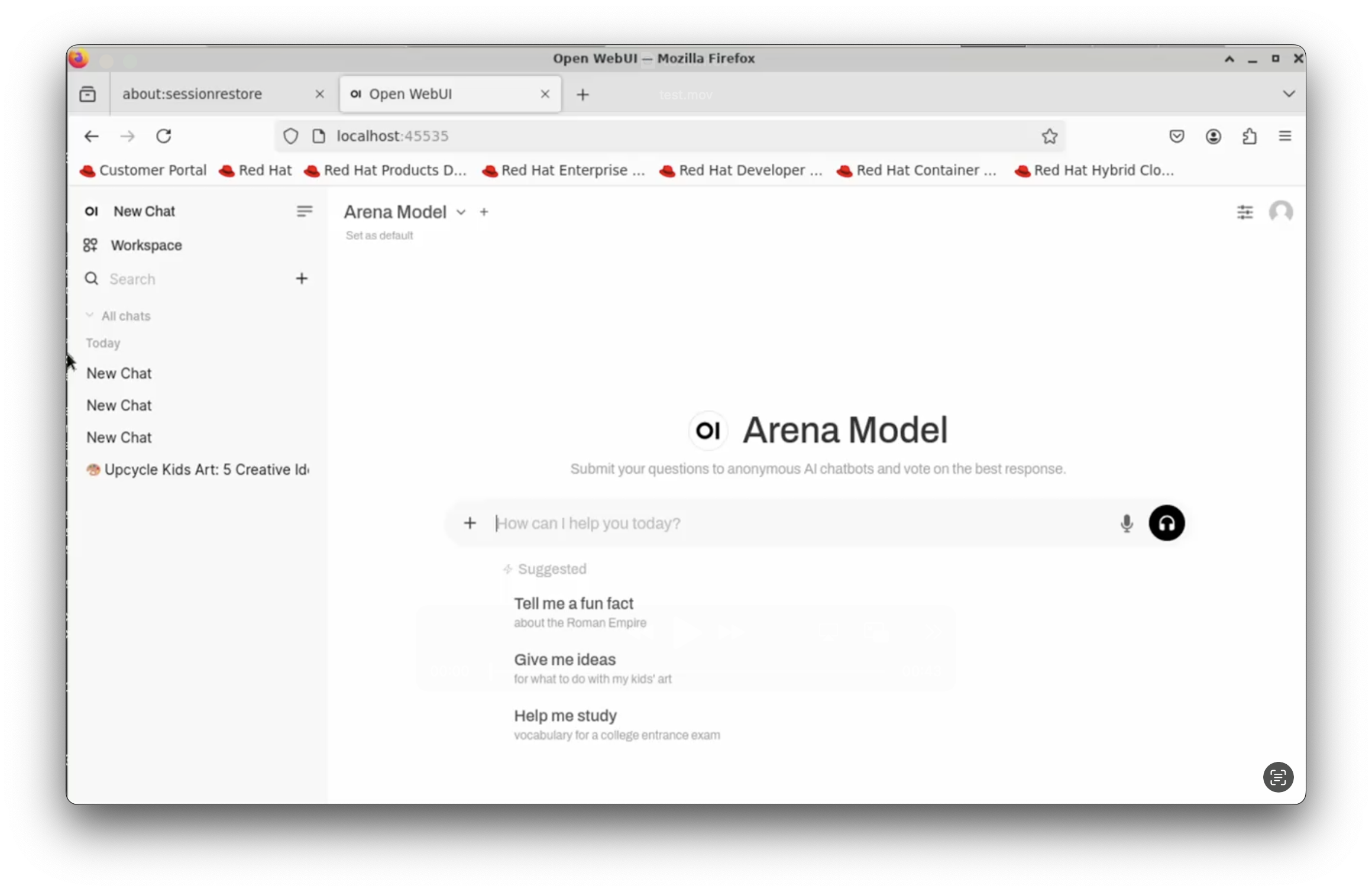
Once your job is running, click the Connect to WebUI Ollama button that appears. Once the Ollama server is finished initializing, the WebUI will automatically open through a firefox browser.
- Ollama Software Guide
Troubleshooting
How to clear your Open WebUI cache.
There are several reasons why one could benefit from clearing their Open WebUI cache, such as the following, but not limited to resetting your WebUI password, clearing conversation history, removing stored API keys, resolving authentication issues. Execute the following command from your terminal window: $ rm -rf ~/open-webui
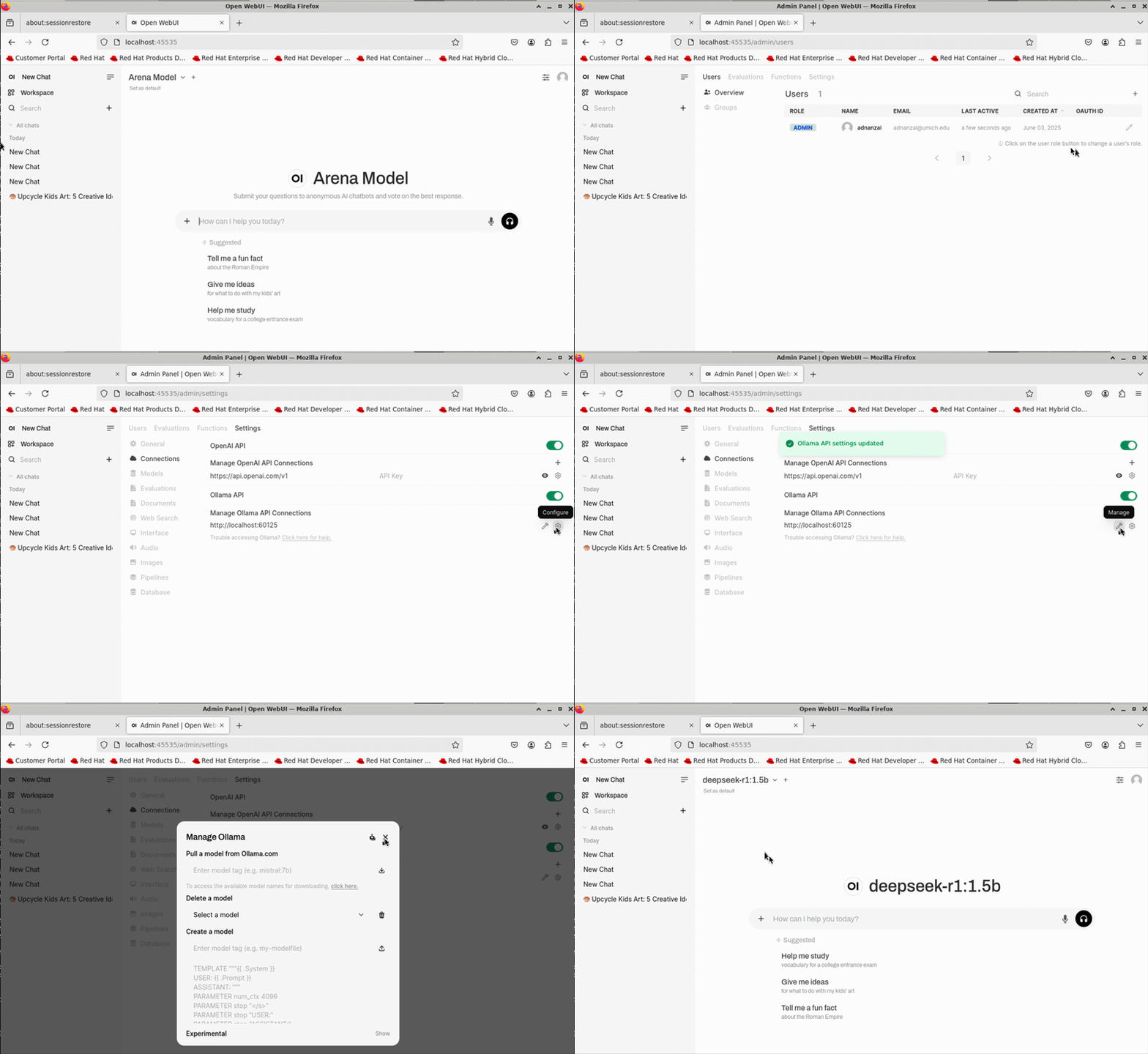
Configuring Ollama API from within Open WebUI
- Access Admin Panel by clicking on the Settings icon in the right sidebar (gear icon)
- Click Settings from the top ribbon, then navigate to Connections in the left sidebar.
- Under Ollama API, you will see "http://localhost:XYZ", click on the gear icon on the right to configure your new port.
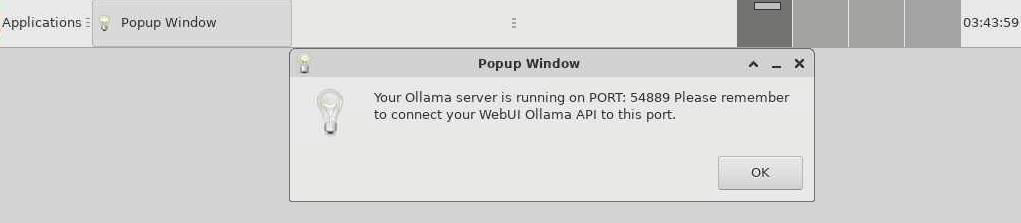
Copy the port number from the popup window
(Popup Window)