
This documentation is intended for U-M Unit AD Administrators.
Before you start
- Use a Windows workstation or server (domain-joined recommended).
- Run PlasmaPup using the account of your choosing (generally your uniqname account is fine, but if you have permissions set within the OU that may obscure visibility, you can use an OU admin account).
- Target only OUs/resources your unit is responsible for.
- If you have a extremely large OU, run from on campus and plan 30-60 minutes for your first run (selection, filters, review, and follow-up questions).
Download and install
PlasmaPup can be downloaded from its GitHub repository at https://github.com/RossGeerlings/PlasmaPup/
Option A (easiest) - Install the pre-built MSI/EXE from GitHub (PlasmaPupSetup/Release).
Option B - Build from source (recommended if your unit requires verified digital signatures or wants to review the code).
Note: Because the pre-built installers are not digitally signed, Windows may display a security prompt when launching the installer or application.
Launch PlasmaPup
Start PlasmaPup normally. Do not use elevated credentials unless your normal workflow requires it or you need extra visibility for an OU with permissions that restrict viewing ACLs PlasmaPup will only be able to show information that is readable to the account running it.
Choose your target OU
In the 'Target and Filters' tab, select the OU you want to audit from the OU tree. If you manage multiple OUs, repeat the process for each OU (or validate whether nesting/inheritance provides enough coverage).
Configure filters and options
Use the filters to reduce noise and focus on what matters for your unit. Typical settings include:
- Enable the option to include permissions assessment of linked GPOs (to understand exposures in policies applying to your OU).
- Ignore highly-privileged central groups that are expected (for example, Domain Admins or other centrally-managed groups), if appropriate for your review.
Add any known and expected service accounts used by your unit to the 'additional ignore' list to keep the report focused on surprises.
UI reference (Target and Filters tab):
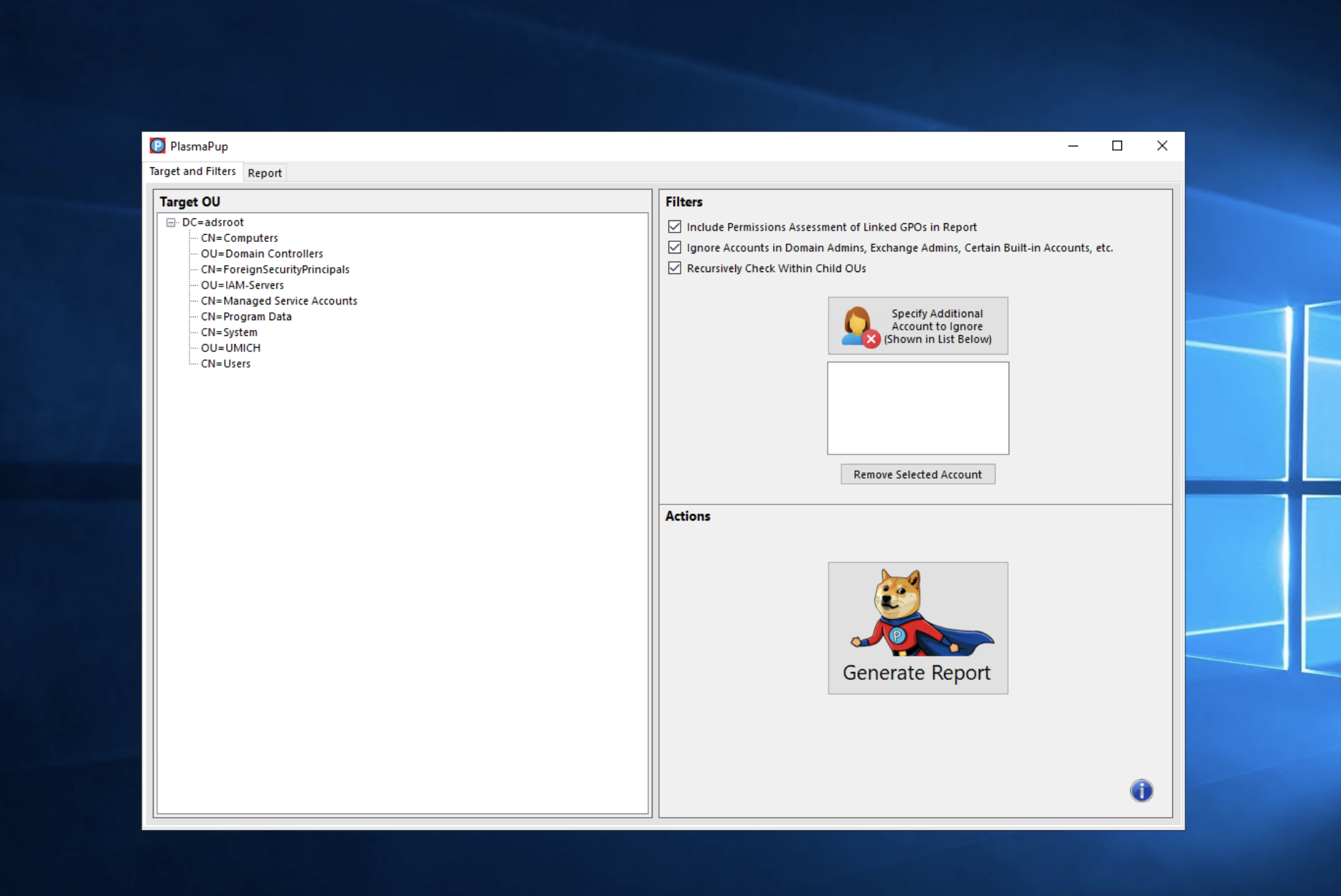
Generate the report
Click the report generation control in the UI. The first run may take longer depending on the size of the OU and whether GPO assessment is enabled.
Review findings
Switch to the report/results view and review identities with write permissions. Prioritize:
- Unexpected identities (users/groups you do not recognize as unit admins).
- Broadly-scoped delegations (apply to many object classes or the entire OU).
- Permissions affecting security posture (for example, ability to change permissions, create/delete objects, or modify linked GPOs).
Validate each ‘surprise’
- Determine whether the permission is direct on the OU or inherited from a parent OU.
- If the identity is a group, enumerate effective members (including nested groups).
- Identify the business owner and the justification for access.
- If the identity is tied to a retired service/process, treat as a candidate for removal.
Remediate (least privilege)
Common remediation actions include:
- Remove stale users from delegated admin groups.
- Replace broad OU delegation with a narrower delegation (specific object types/attributes).
- Move 'break-glass' style privileges into tightly controlled groups.
- Adjust GPO delegation so only intended policy admins can edit linked GPOs.
Follow your unit's change management practices and test changes in a safe way. If you are unsure about whether a permission is required, validate with the service owner before removing it.
Re-run and schedule periodic checks
After remediation, re-run PlasmaPup to confirm the expected reduction in exposures. A reasonable baseline is to run quarterly, and additionally after major staffing changes, reorganizations, or new/retired services.
Help / questions
Project page: https://github.com/RossGeerlings/PlasmaPup/
For U-M support options referenced in the presentation, send a TDX ticket to: ITS-IAPROACTIVE