
Welcome to the MiServer Virtualization Service. Here are some important steps designed to assist you with the initial access and administration of your virtual server.
Connect to the Campus VPN
For information and installation instructions, please see U-M Virtual Private Network (VPN).
Connect to MiServer Jump Server
Access to the MiServer virtual environment is only granted via the MiServer jump server (vci-jmppra01.adsroot.itcs.umich.edu) using dedicated jump server accounts that are created when a user joins the service. This server is only accessible to MiServer customers and from the UM VPN. For information and installation instructions, please see U-M Virtual Private Network (VPN).
Access Virtual Server vCenter
From the jump server login using the VMware Web Client and enter the following in the information fields:
Username: <uniqname>
Password: <UMICH password>
A two-factor authorization request will be pushed to your default device
Load Operating System
- Create or obtain an ISO image for the appropriate operating system.
- Switch to VMs and Templates view in vCenter, then navigate the folder structure to find your virtual machine.
On the summary tab of the Virtual Machine Object, select Launch Remote Console
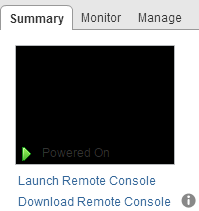
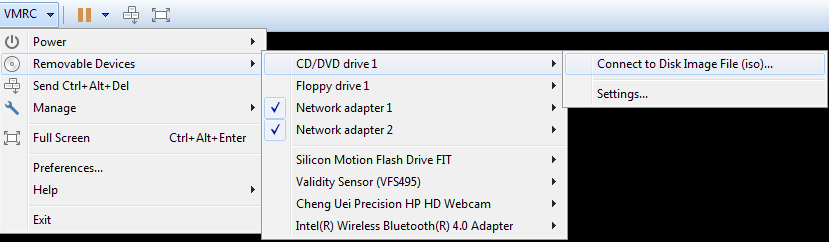
From the VMRC menu, select Removable Devices, CD/DVD drive, Connect to Disk Image File (iso)... and select your Operating System ISO (from step 1).
- Power on your virtual server.
Install TSM Client
Install the TSM client based on your operating system:
IMPORTANT! The backup schedule runs automatically every night, but the client must be installed on your VM and its connection initialized with the TSM server for successful backups to occur.
Join the MiServer Notify MCommunity Group
To ensure that you are aware of all system maintenance issues and announcements, please join the MiServer Notify MCommunity group. For instructions on joining this group, visit the MiServer Notify directory site.
Getting Help
For further assistance and support, please contact the Service Center:
- 4-HELP (734-764-4357)
- Submit a Service Request Online
- Email [email protected] to open a ticket directly with the MiServer team