
There may be times when you want to include an extra security measure to ensure the person opening the document is the actual recipient. For an FDA-regulated document in SignNow, a password is required. Here are the steps to follow to establish one:
- Locate and open the document or template.
- Click Invite to Sign.
- The Send Invite page opens.
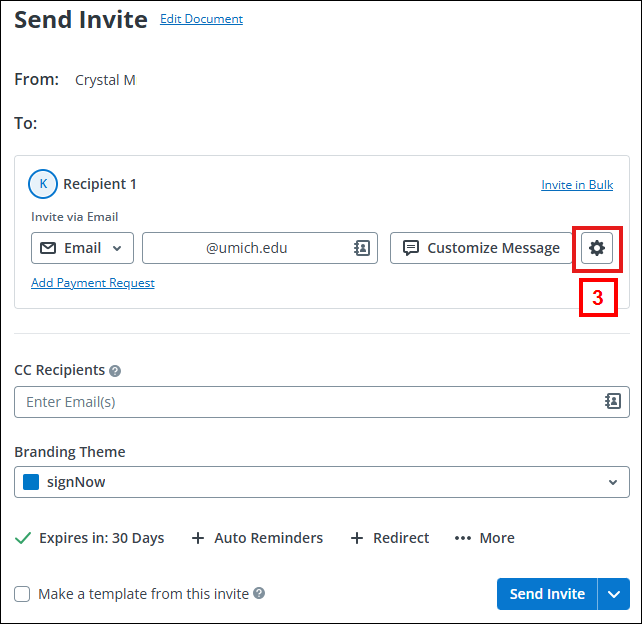
Select the Settings button next to Customize Message. - The Settings for <Recipient> right-side screen opens. You can set these options for each recipient.
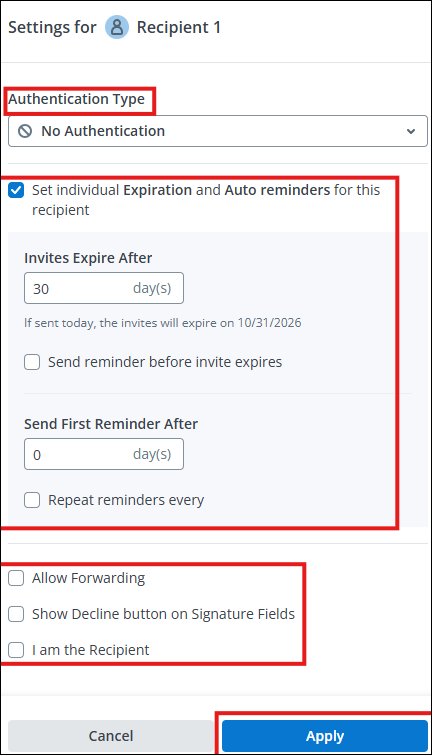
- Authentication Type lets you select an option for sharing a password. Please remember: do not send authentication information via email.
- The default expiration for signing a document is 30 days. If you wish to extend that, update the Invites Expire After.
- If you wish to have reminders sent, update the reminder section.
- Allow Forwarding checkbox is available if you wish to allow the Recipient to forward the document.
- I am the Recipient checkbox should be used when the individual sending the document is also signing it.
Setting Password, Text Message, or Phone Call
Option 1 - Create a Password
- To create a password, click the down arrow in the Authentication Type box.
- Select Password.
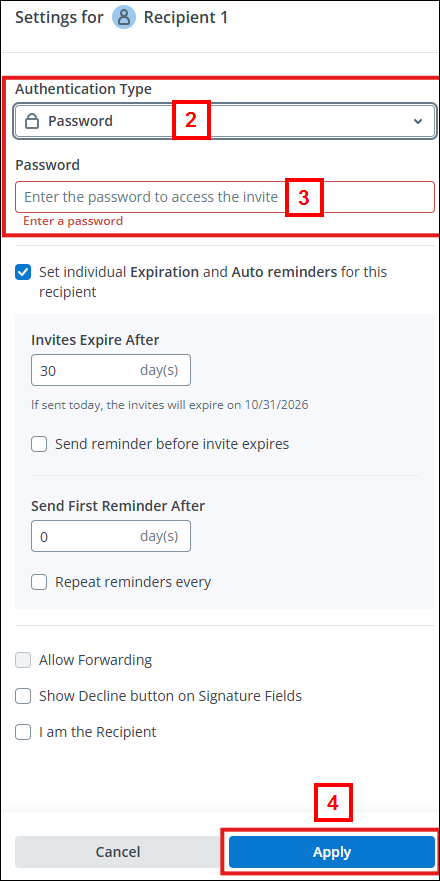
- Enter the desired password.
- Click Apply, then click Send Invite.
Note: You will need to notify the recipient of the password via Text Message or Phone. Do NOT send passwords via email.
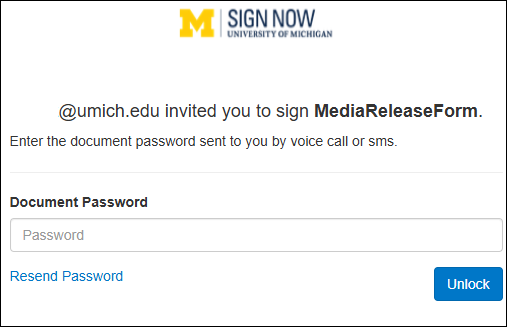
The recipient will receive an email and after they click Open Document, they will be prompted to enter the Document Password.
Option 2 - Send Password via Text Message
- To send a password via text message, click the down arrow in the Authentication Type box.
- Select Text Message (SMS).
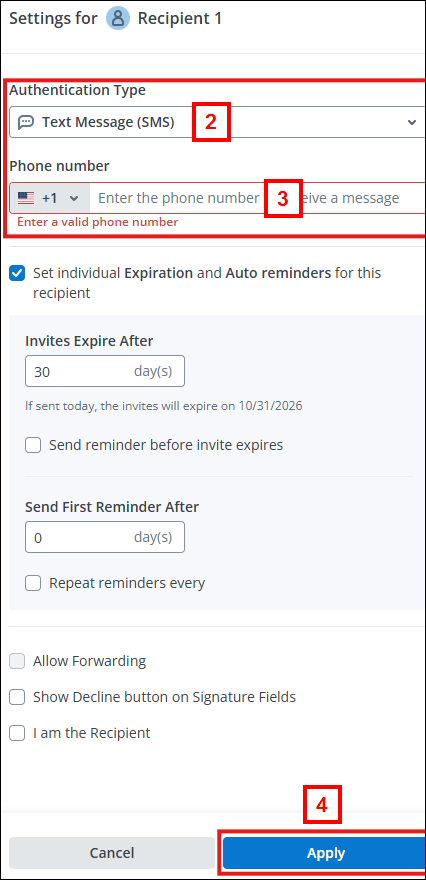
- Enter the recipient's phone number.
Click Apply button, then Send Invite.
The recipient will receive an email and after they click Open Document, they will be prompted to request a Password. Select Send Password in the email.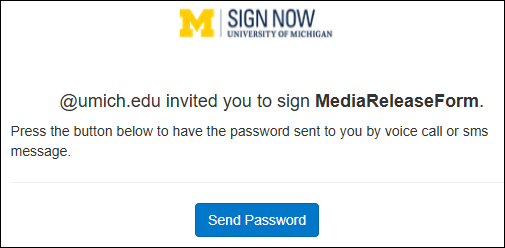
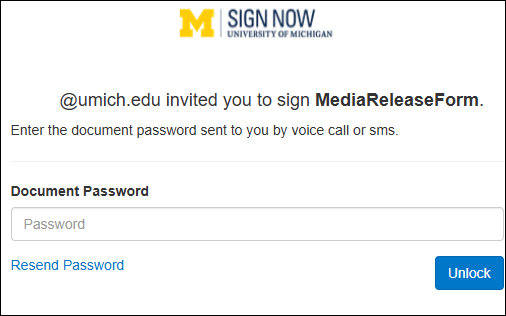
The recipient will receive a message on their phone from SignNow:SignNow: This is a one-time security message. Use this code to unlock your document invitation: NNNNNN Reply STOP to opt out.The recipient will be prompted for the password. Enter the password and click Unlock.
The recipient will be prompted to log in to SignNow. If using an @umich.edu email address, they need to select Login with SSO. If using another account, they need to select Sign up for signNow for a free hyperlink to create a trial account (e.g.,. If you have a Google account, you can use that to log into SignNow.)
Option 3 - Send Password via Phone Call
- To send a password via phone call, click the down arrow in the Authentication Type box.
- Select Phone Call.
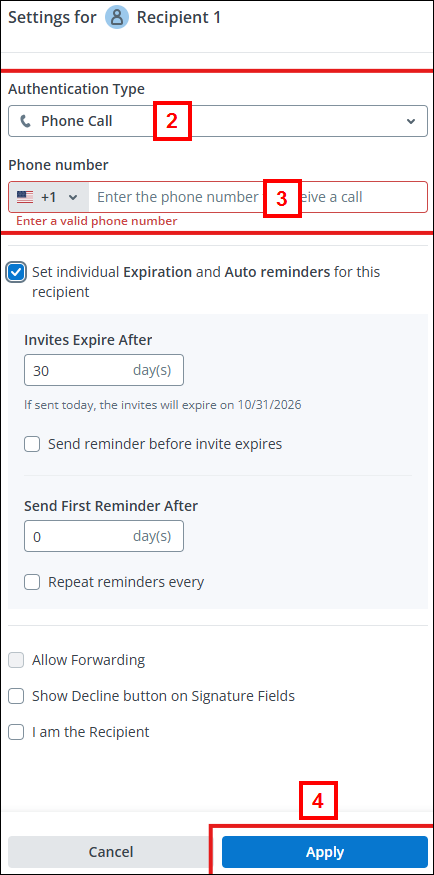
- Enter the recipient's phone number.
- Click Apply, then click Send Invite.
The recipient will receive an email and after they click Open Document, they will be asked to request a Password.
The recipient will receive a phone call with a password from SignNow to enter, which will open the document.