
Using any browser, navigate to Wolverine Access (i.e., wolverineaccess.umich.edu).
- Search for Document Imaging.
- Click the Document Imaging box.
- The Document Imaging System login page displays.
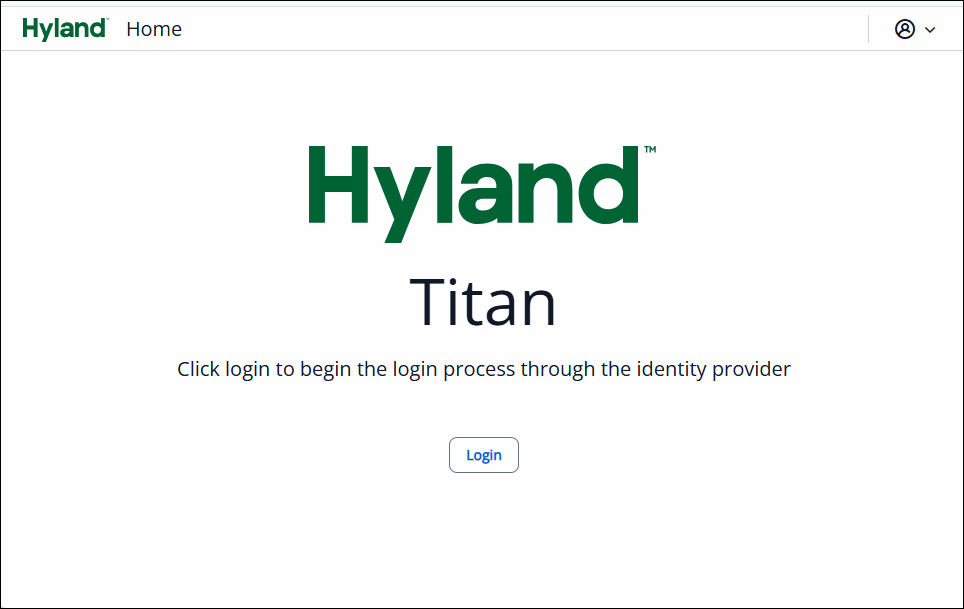
- Click Login.
- If you have not logged in for the day, you will first need to enter your login credentials and/or your multi-factor authentication information.
The home page displays.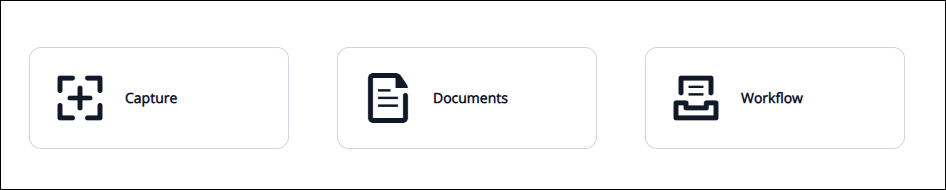
Three options are displayed on the home page:
- Capture: for uploading new documents
- Documents: for searching and viewing existing documents
- Workflow: for special processing of documents, when applicable
Select the appropriate option to proceed.
For easier future access to Document Imaging, you can create a bookmark in your browser or a shortcut on your desktop using the instructions below:
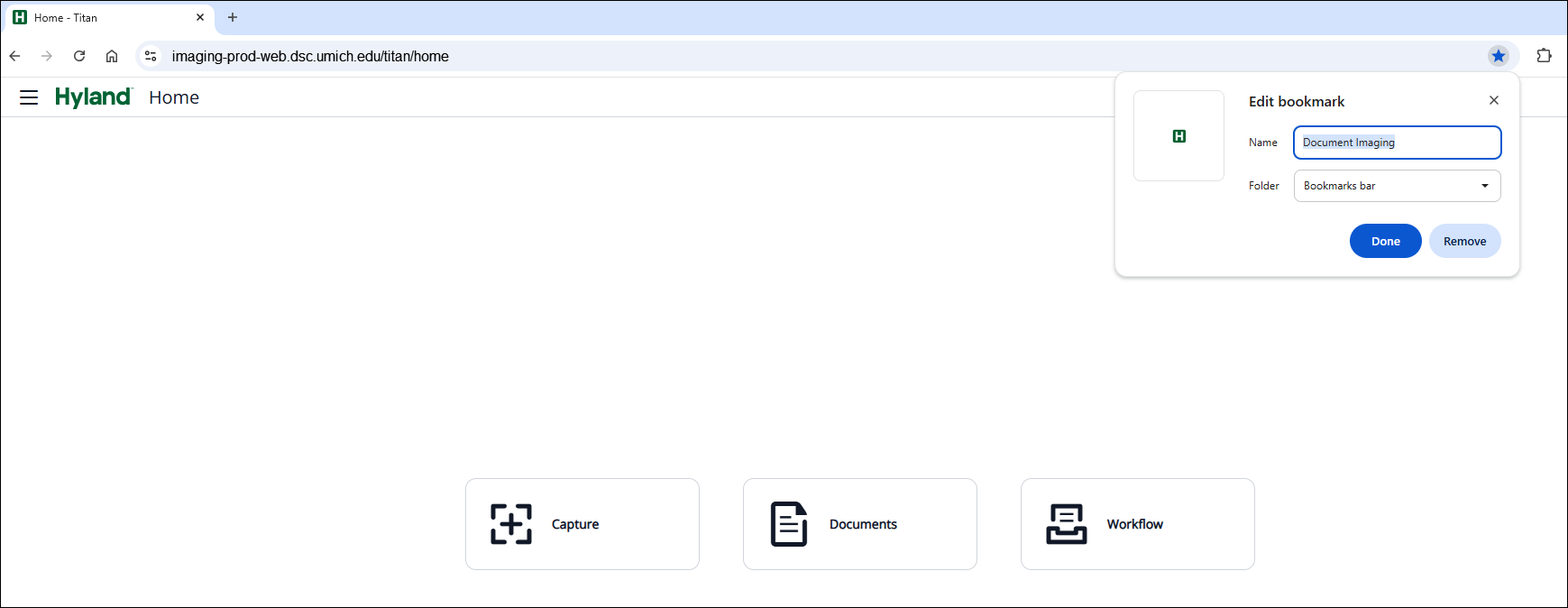
- To bookmark this in your browser in Chrome, click the star icon
 in the far right of the URL bar. Name your bookmark, choose where to save it in the folder drop-down, and click Done.
 - To create a shortcut on your desktop, right-click in an empty space on your desktop, click New, then select Shortcut. Copy the URL from the Document Imaging homepage in your browser, and paste it in the textbox that pops up for the shortcut location. Click Next, and name your shortcut. Click Finish to save the shortcut.
Last Updated
Tuesday, June 9, 2026