
Overview
This step-by-step procedure walks through the process of creating and submitting a Service Charge in eRAM (ULAM Service Charge Processing) from creation to review, and includes instructions for handling issues if they arise.
Step-by-Step Process
Create New Service Charge
- Click the ULAM Service Charge Processing role.
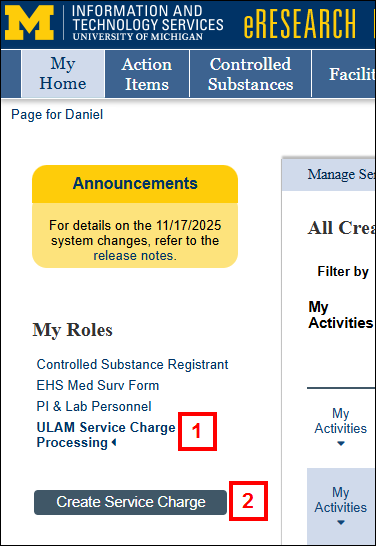
- Click Create Service Charge.
- Click Browse
 in the Select Type of Service field.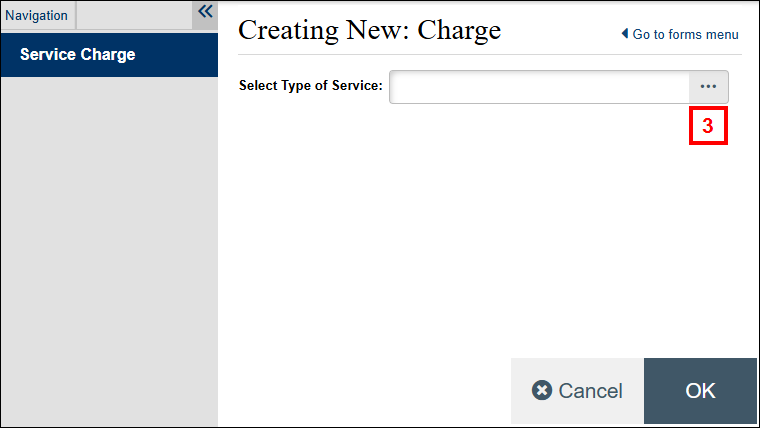
- Click the Vet Tech Services radio button.
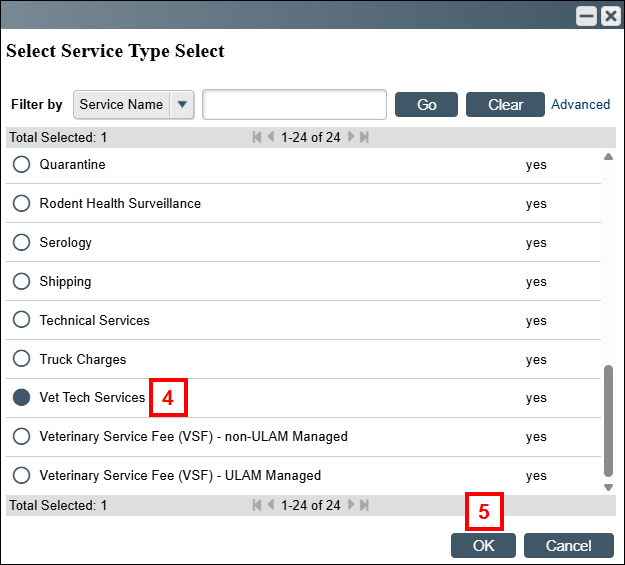
- Click OK.
- Click OK.
Note A new Service Charge record is created and a Charge Number is assigned. - Click the Manage Service Charges activity.
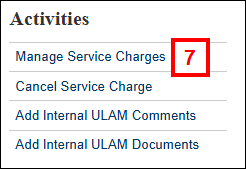
- Enter the Service Date of the Charge.
Note When entering Vet Tech time, select the last day of the month.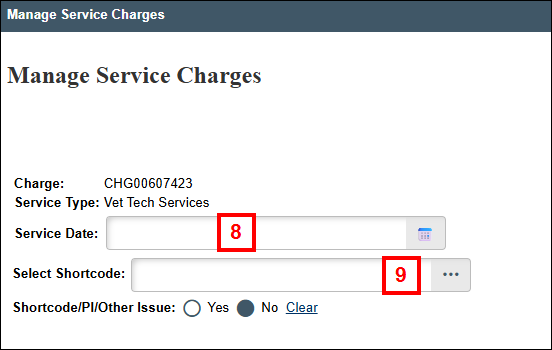
- Click Browse to select the appropriate Shortcode.
- Click OK.
Note The PI field appears showing PIs associated with the selected Shortcode. - Select the PI associated with the Service Charge.
Note A Protocol list appears for that PI. - Select the Protocol associated with the Service Charge.
Note If you don't see the PI or Protocol expected, confirm that the Shortcode is correct. - Click Add under Service Charge Details.
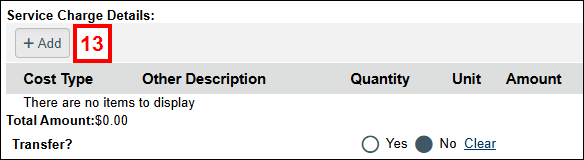
- Click Browse to select the Cost Type.
Note If Drugs is selected for the Cost Type, see the additional steps below.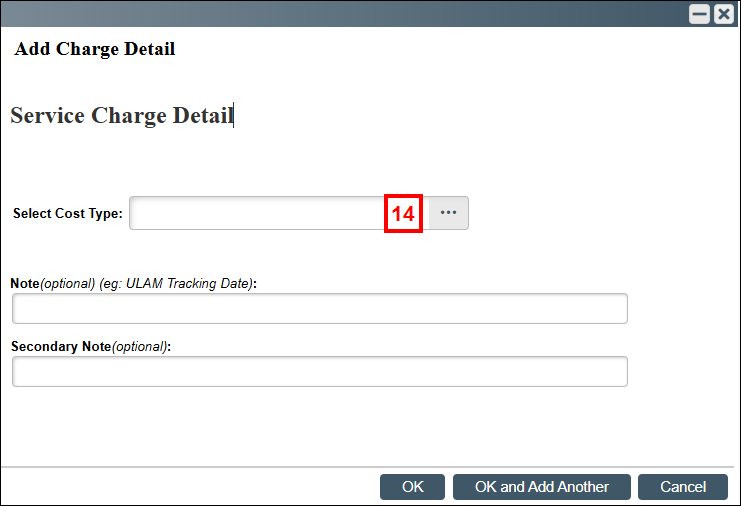
- Click OK.
Note In the Note (ULAM Tracking Date) field, enter the specific Service Charge date and reason for the charge (e.g., rechecks). - Complete the required fields for that Cost Type (e.g., Quantity, Units, Note).
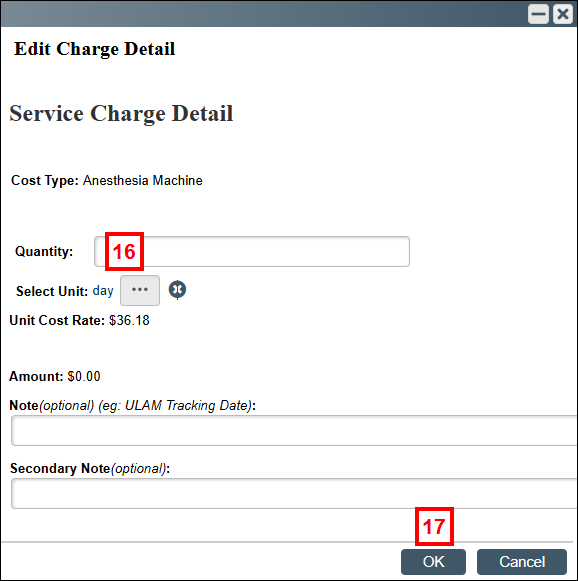
- Click OK.
Note The Cost Type line appears in the Service Charge Details. - Repeat steps 13-17 to include multiple cost types/lines.
- Click the Yes radio button for No Species Applies.
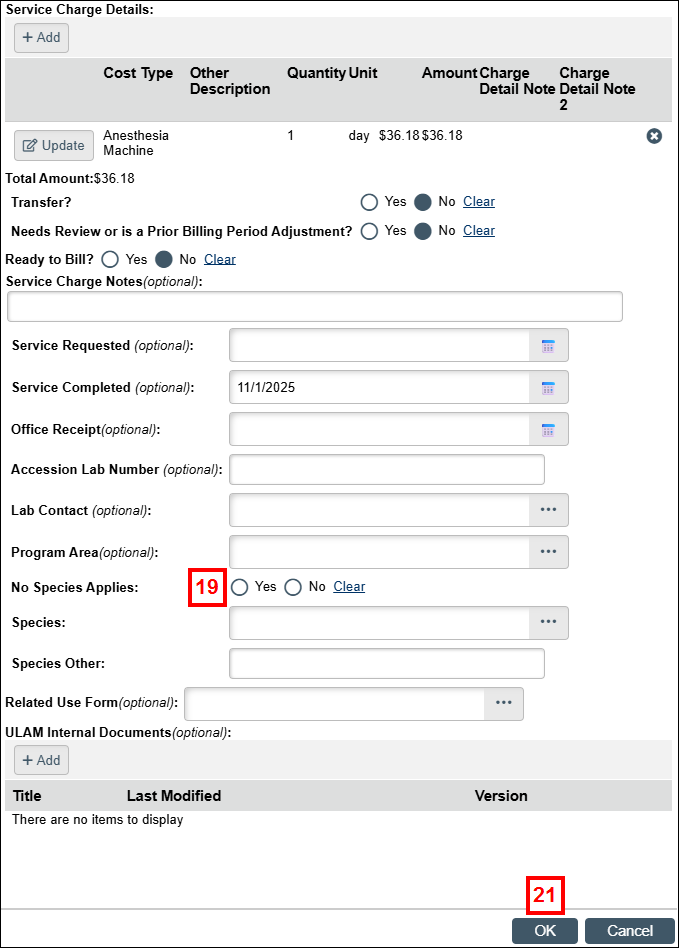
- Click OK.
- Click OK.
Note The Service Charge remains in a Created state and displays all entered information. - Email Raylene Kubik ([email protected]) to notify that Service Charges have been created/saved and are ready for monthly review.
Vet Tech Managers
Once all charges are entered for the month (listed under All Created Service Charges), the Vet Tech will email/notify the Vet Tech Manager to review the (monthly) entered charges.
- The Vet Tech Manager will change all charges with no concerns by selecting Yes for the Ready to Bill field.
- The Vet Tech Manager will send all drug charges to Charges in Review for drug price updates from Eva.
- Eva sees them in the Charges in Review lister and updates them before billing/marking Ready to Bill.
- All charges with shortcode/PI/other issues, or charges with No noted under Active in MPathways/Available for use, will be sent to Charges with Shortcode/PI Issue.
Enter Charge Detail for the Cost Type = Drugs
When entering the Service Charge Detail for Cost Type = Drugs in steps 13-17 above, the process is slightly different. For example, you may not know the Unit Rate Cost Rate for the Drug - Animal Treatment Report. Follow the steps below to flag this correctly so that Eva Schultz (Accountant) can review the CHG.
Drugs - Animal Treatment Report Service Charge Detail
- Enter details about the drug in the Other Description field - record the Drug Name, amount provided, and any other important information.
Notes- If the Other Description field does not display when the window opens, contact Phil Boetsch ([email protected]) to complete the steps in the section below.
- Leave the Quantity.
- Leave $1.00 in the Unit Cost Rate field – (auto populated).
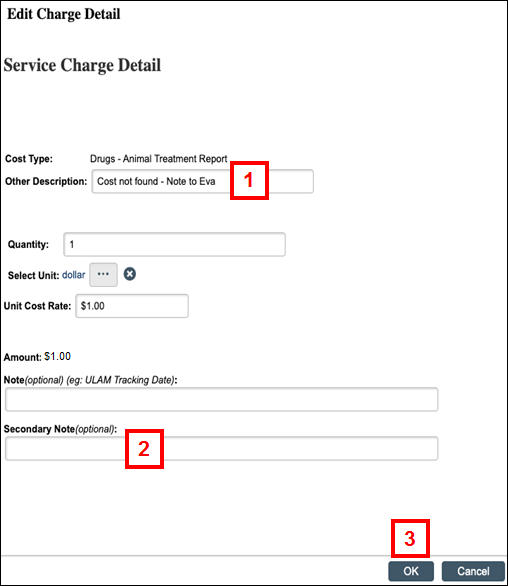
- (Optional) Enter a note to Eva Schultz in the Secondary Note field.
- Click OK.
Set the Other Cost Field on the Cost Type in the Maintain Code Values Workspace (Accountants Only)
- Go to the Maintain Code Values workspace.
- Select Billing Cost Type under the More… tab.
- Search for the Cost Name (Drug - Animal Treatment Report).
- Click Update.
- Select Yes next to the Other Cost field.
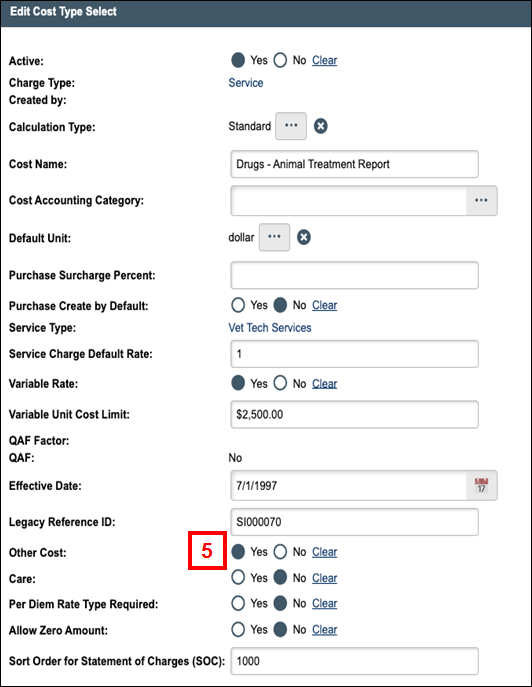
- Click Update.
Note The Other Description field should now display on the Service Charge Detail page.
Troubleshooting
You may encounter problems when entering or saving a Service Charge. For example, a shortcode that is not active in M-Pathways, or Service Charge Details are incomplete. Follow these steps to flag the issue correctly so that reviewers can identify and resolve it.
If the Shortcode is not active or unavailable in M-Pathways:
- On the Manage Service Charges page, select the desired shortcode (you can proceed even if it’s inactive).
- Click the Yes radio button for Shortcode PI or Other Issue.
- Enter an explanation in the Notes field (e.g., Shortcode inactive in M-Pathways - please verify).
- Click OK.
Note The Service Charge is saved with Issue = Yes, allowing the reviewer to see the problem and fix the shortcode during review.
If there is an issue with the Service Charge details:
- Leave the Service Charge Details as they are.
- Click the Manage Service Charges activity.
- Click the Yes radio button for Shortcode/PI/Other Issue to flag that there is a problem with the Service Charge.
- Enter a brief Note (e.g., Unable to enter cost details, please review).
- Click OK.
Note The reviewer will see that an issue was reported and can investigate or correct the Service Charge during the review phase.
If one of these issues is present, the reviewer will see the Issue=Yes indicator(s) and review the Service Charge details and/or shortcode validity. Corrections will be made before approving and finalizing the Service Charge.