
Overview
When a Facility Inspector conducts a site visit, they can enter findings or deficiencies for each room with notes or recommendations in eRAM. They can then create action items and send summary emails to responsible person(s)/assignees.
Step-by-Step Process
Maintain Deficiencies/Findings
- Click ACUO Facility Inspector under My Roles.
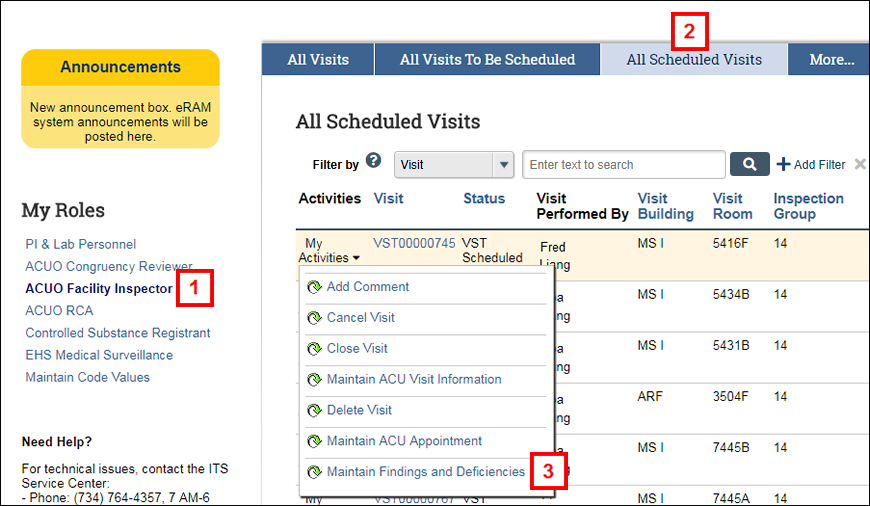
- Click the All Scheduled Visits tab.
- Click My Activities > Maintain Findings and Deficiencies for the applicable Visit. Go to step 5.
OR
Click the Visit link to open the Visit Workspace. - Click the Maintain Findings and Deficiencies activity.
- Click Add under Findings.
- Enter or lookup the Deficiency Type.
Note Enter text to lookup available options or use the Filter by menu in the Select Visit Deficiency Type window.
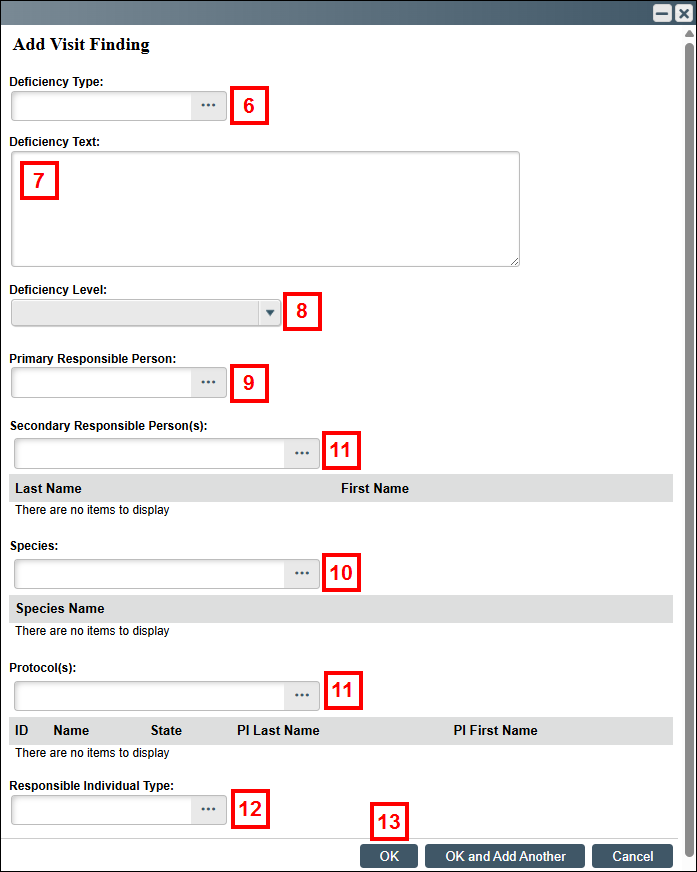
- Enter Deficiency Text.
- Select the Deficiency Level.
- Enter or lookup the Primary Responsible Person to whom the finding is assigned.
Note This person is usually the PI. The Secondary Responsible Person is usually the Lab Personnel. - Enter or lookup a Species, if applicable.
- Enter information in the following optional fields, if applicable:
- Secondary Responsible Person
- Protocol(s)
- Enter or lookup the Responsible Individual Type.
- Click OK if you’re done entering findings. Click OK and Add Another to add additional findings, if there’s more than one PI.
- Click OK at the bottom of the Maintain Findings/Deficiencies window.
Send Summary Email and Create Action Items
After the Facility Inspector has entered findings, they must create action items for those findings with a level of Deficiency. All other Deficiency Levels (i.e., Note, Suggestion for Improvement) will not get an action item. Completing this activity will send a summary email to those assigned to work the actions items.
Important If a Visit has no Findings/Deficiencies, or has a Deficiency Level of Note, Facility Inspectors don’t have to run this activity.
- Click the Send Summary Email and Create Deficiency Action Items activity.
- Click OK.
Notes- The actions will display on the Action Items tab of the Visit Workspace.
- The deficiencies will display on the Findings/Deficiencies tab of the Visit Workspace.
- If additional deficiencies are entered, you can run the Send Summary Email and Create Deficiency Action Items activity again to assign the action items and send a new summary email.
Last Updated
Thursday, January 29, 2026